
Write instructions for an agent
Instructions tell an agent how your team does the work: which vendor to pick when two look alike, when to hold an invoice, which emails to ignore. The agent already knows how to read a document and look records up in your ERP; your instructions add what is specific to your business. Each agent has three kinds: General for the work itself, Feedback for how Learning reads your corrections, and Filtering for which emails the agent processes.
Open the instructions editor
You need to be a team admin or an agent editor to change instructions.
In Agents, open the agent.
On the Instructions card, click the edit button.
Edit the General, Feedback, or Filtering tab.
Click Save (or press Cmd+S on Mac, Ctrl+S on Windows).
Saved instructions apply to documents that start processing after you save. A document that is already processing keeps the instructions it started with. Each tab holds up to 50,000 characters.
Write good instructions
Write the rules you would give a new teammate on their first week, in plain language.
One rule per line. Short rules are easier for the agent to follow and for your team to review.
Name names. A vendor, a customer, a part number, or an amount beats a general warning.
Say what happens when the rule doesn't apply. "If the invoice names no purchase order, say so instead of guessing one."
Give the reason when it isn't obvious. The agent applies a rule better when it knows why the rule exists.
Describe the outcome, not the search. Tell the agent what the right answer looks like and let it decide how to find it.
Instead of | Write |
|---|---|
Be careful with freight. | Northwind Freight bills freight as its own line. Keep it as a separate line; never add it to an item's price. |
Use the right vendor. | Northwind Freight bills from two remit-to addresses. Both are vendor NWFRT. |
Watch out for big invoices. | Hold any invoice over 25,000 USD for a person to approve, even when every line matches. |
If your plan includes the Assistant, it can suggest edits to your instructions. A suggestion shows in the editor with Accept and Reject, and an accepted suggestion still needs Save.
Give one step its own rules with a section
A section is a block of instructions for one step of the agent's workflow. A step with its own section reads only that section. A step without one reads the whole text, except private sections.
The outline on the left of the General tab lists the steps the agent runs, grouped by stage: reading the document, matching records (vendor, purchase order, receipts, and so on), review, and labels. A step with a section shows its word count; a step with a + has none yet.
In the outline, click the step. The editor adds its section at the end of the text.
Write the rules for that step inside the section.
Click Save.
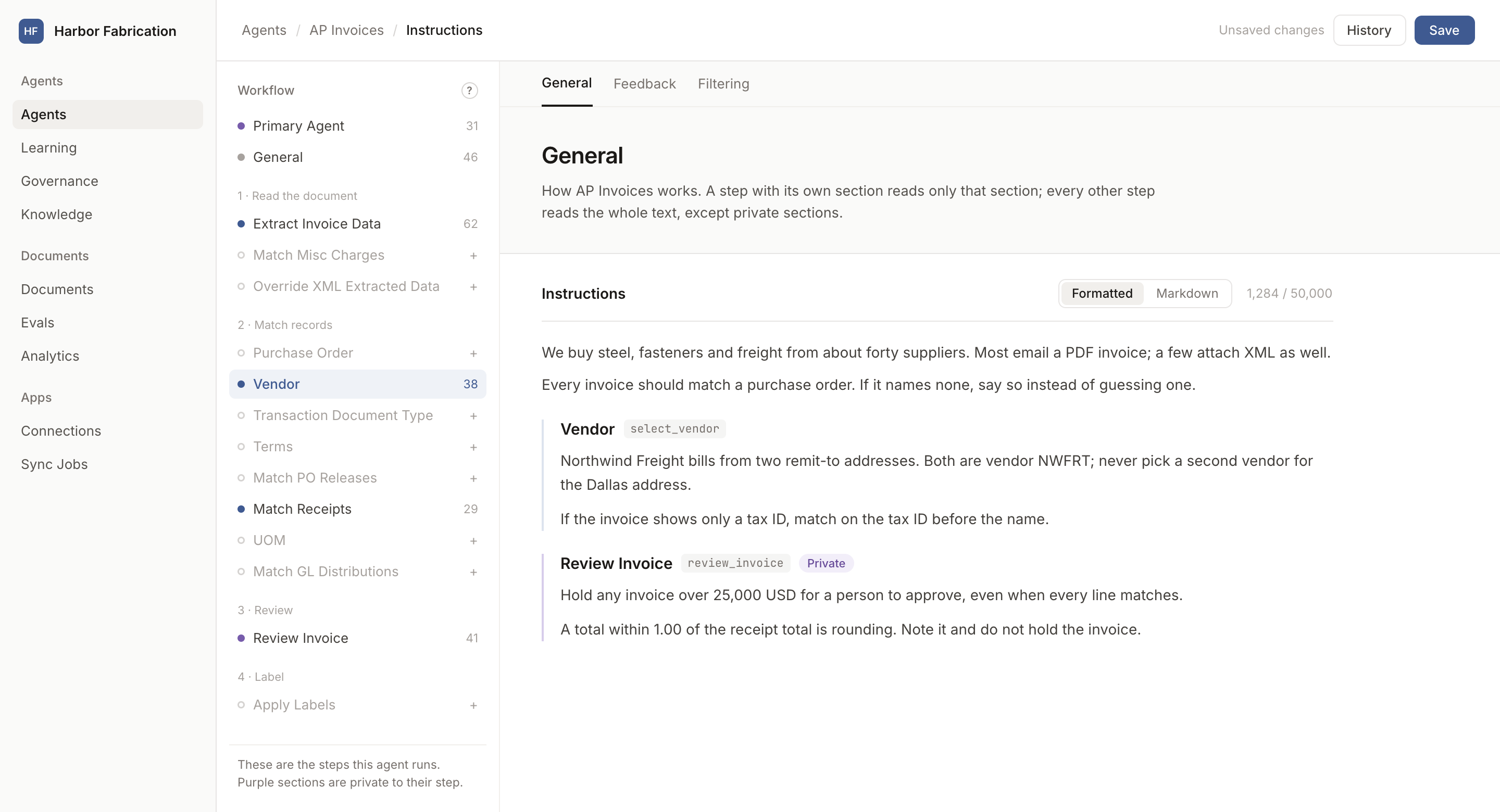
You can also type a section yourself. Each step has a tag, shown next to the section's name in the editor, and the section is the text between the opening and closing tag:
<select_vendor>
Northwind Freight bills from two remit-to addresses. Both are vendor NWFRT.
If the invoice shows only a tax ID, match on the tax ID before the name.
</select_vendor>
A section replaces the general instructions for its step; it does not add to them. When you give a step its own section, copy into it any general rule that step still needs.
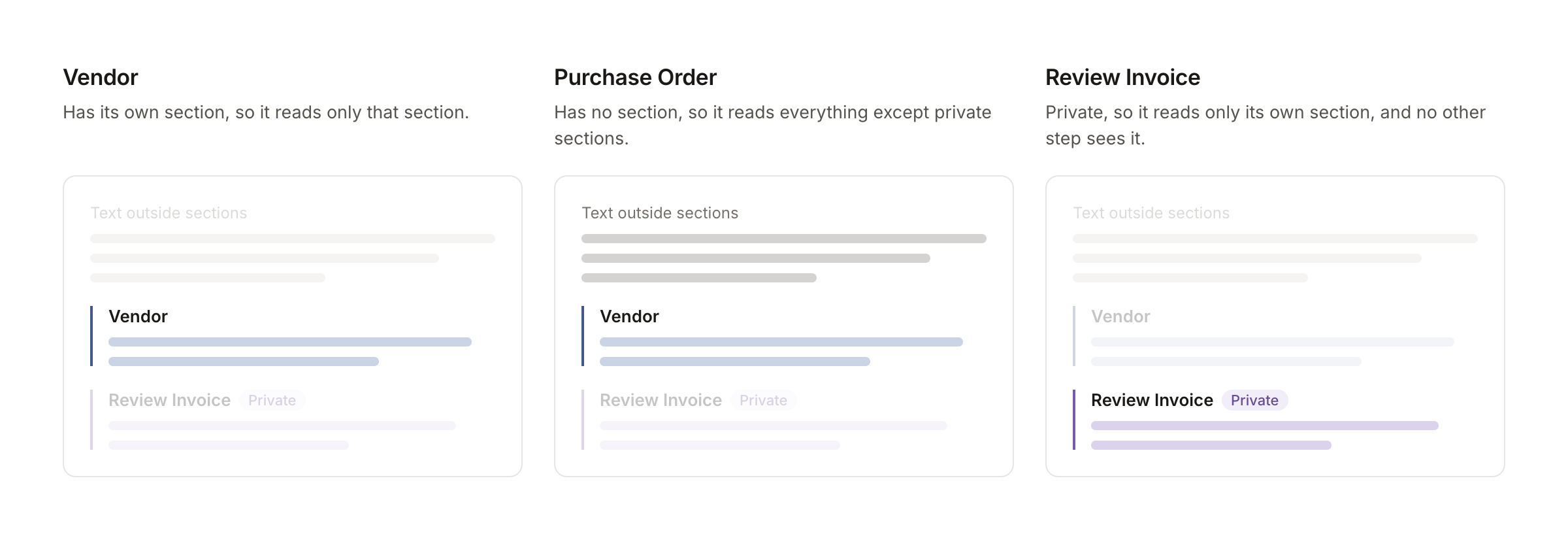
Two things the editor flags for you: a section for a step this agent never runs is marked and listed under Not read in the outline, and only the first section for a step is read, so a second copy is marked as a duplicate.
Private sections
The primary agent and the review step have private sections. Only their own step reads a private section, and every other step skips it, even a step that reads everything. That keeps a rule like an approval threshold out of extraction and matching.
The review step runs only when its section exists, so adding a review section is what turns review on for the agent.
See which text each step reads
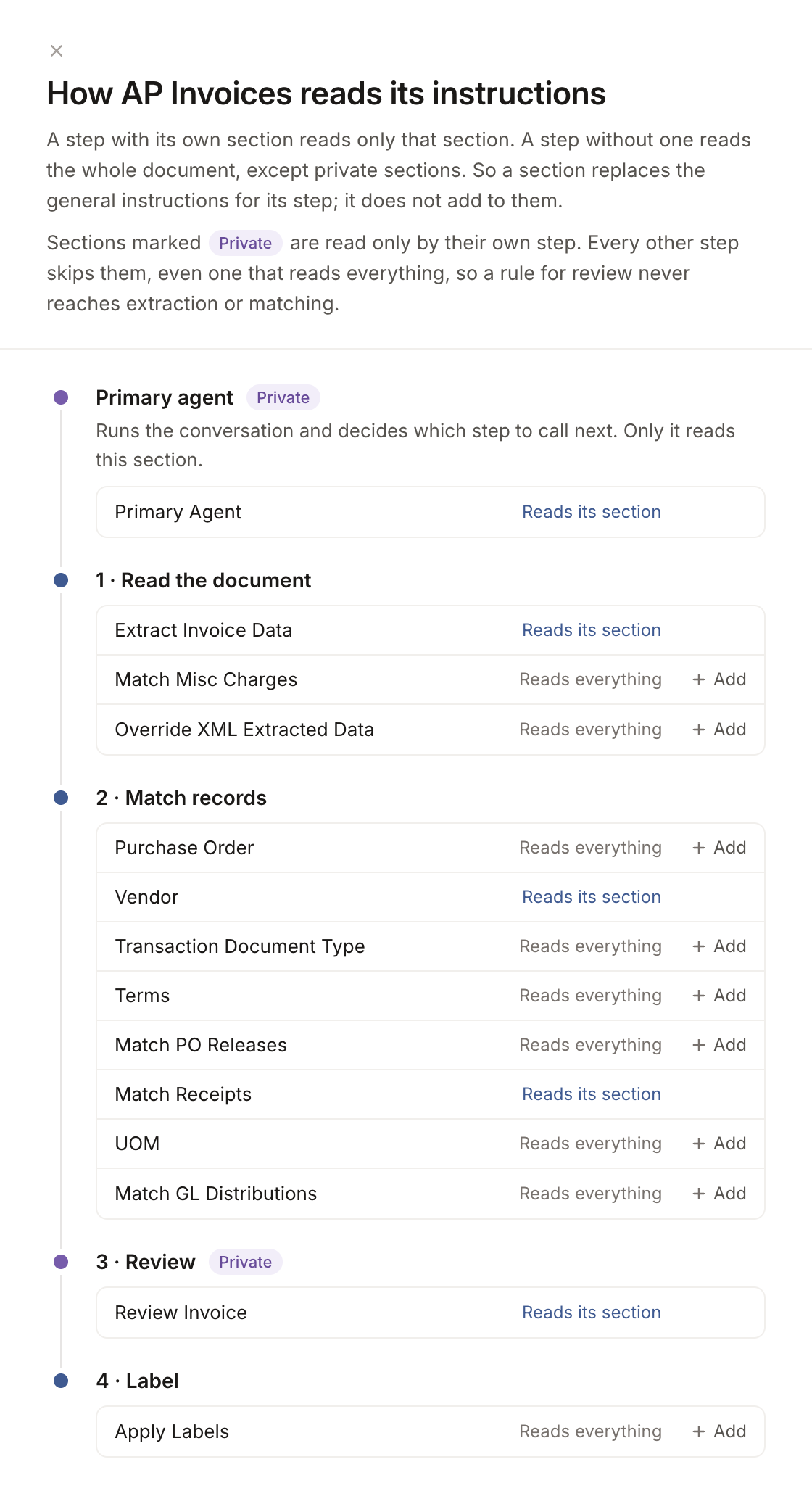
Click ? next to Workflow at the top of the outline. The sheet lists every step the agent runs and what it reads: its own section, or everything. Click Add on a step to give it a section.
Formatted and Markdown views
The Formatted view shows each section as a titled block; Markdown shows the raw tags. Both edit the same text, so switch whenever you want to see the tags.
Teach Learning with feedback instructions
The Feedback tab is read by Learning when it reviews your team's corrections and suggests new rules. The agent's own steps never read it. Tell Learning what a correction means, what to ignore, and when a pattern is worth a rule:
Ignore changes to tax rates and exchange rates. Those follow the market, not a mistake by the agent.
Don't suggest a rule from a single correction.
Choose which emails the agent processes with filtering instructions
The Filtering tab is read when an email arrives, before the agent opens it. We already know what the agent processes from its tools, so describe only your exceptions: what to set aside, and what to process anyway.
Statements and remittance advices are not invoices, even when they list invoice numbers. Set them aside.
Anything from [email protected] is an invoice, whatever the subject line says.
An email the filter sets aside shows as Skipped in Documents. Open it and click Process anyway to send it through.
Undo a change with History
Every save of the General, Feedback, and Filtering tabs is kept as a version, whoever made it, including rules added by Learning. Versions are kept for 30 days, except the oldest and the current one.
Click History at the top of the editor.
Find the version and click Restore.
Click Restore Version to confirm. The version replaces all three tabs in the editor, including any unsaved changes.
Click Save to make it current.
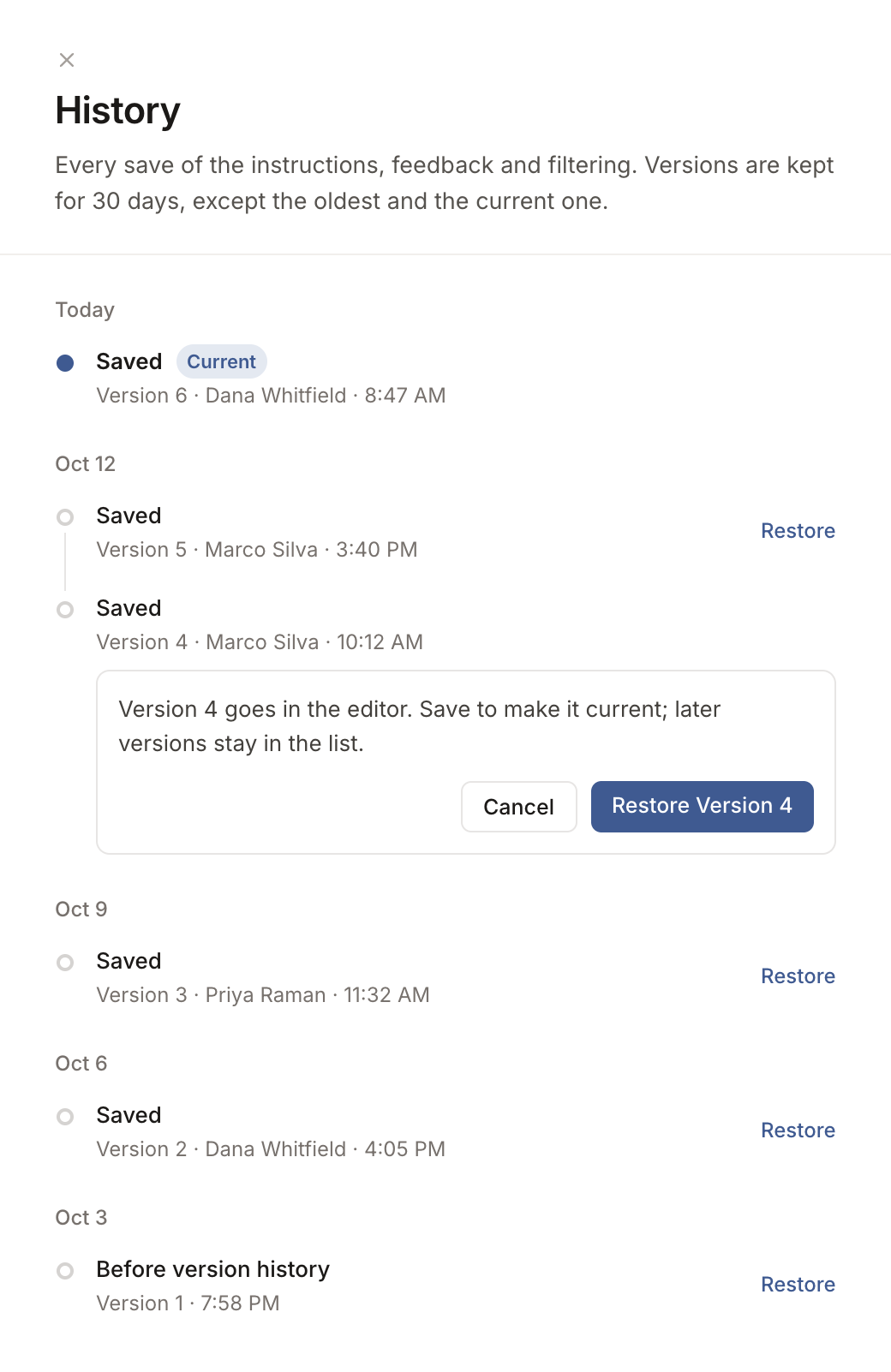
Nothing changes for the agent until you save, and saving adds a new version, so the versions after the one you restored stay in the list.