
Update your agents' Epicor permissions
Update the Fluent access scope in Epicor whenever your agents need Epicor methods it doesn't grant: you started using another agent or Epicor tool, we told you a tool needs new permissions, or Verify permissions lists missing methods. Download a fresh scope from the Epicor security requirements page, import it in Access Scope Maintenance, then verify each connection.
Before you start, you need:
A Fluent account in the workspace whose agents you are updating.
Access to Access Scope Maintenance, User Account Maintenance, and API Key Maintenance in Epicor.
If you have never imported a Fluent scope, start with Import the Fluent access scope into Epicor.
Check what your scope is missing
Verify permissions reads the access scope Epicor applies to a connection and compares it with every method that connection's tools call. Epicor applies the API key's scope when the key has one, and the integration user's scope otherwise, so the check covers whichever one Fluent's calls actually run under.
In Fluent, go to Connections.
Open the menu next to your Epicor connection and choose Verify permissions.
IMAGE: verify-permissions-menu.png
Workspace admins see this menu. Any member can run the same check from the Verify permissions section of the Epicor security requirements page.
The result is one of these:
All methods are granted: the scope covers every tool on the connection. Nothing to update.
Methods are missing: the dialog lists each Epicor service and the methods the scope leaves out. Documents that need them fail with permission errors until you update the scope.
Access scope needs updating: the scope was imported before our scopes included this check, so it can't be read. Update it once and the check works from then on.
No access scope applies: neither the integration user nor the API key has a scope in this Epicor company, so Epicor doesn't limit Fluent's calls.
IMAGE: verify-permissions-missing.png
Download the updated scope
Sign in on the security requirements page so it starts from your workspace: every Epicor tool your agents use is already checked, and the download covers all of them in one scope.
Go to the Epicor security requirements page and sign in.
If you belong to several workspaces, choose the one you are updating in Workspace.
Under Used in this workspace, keep every tool checked. Check any tool you plan to use soon under Other Epicor tools.
Click Download access scope. You get one
.easfile.
IMAGE: security-requirements-page.png
Unchecking a tool your agents use leaves it out of the scope, and that agent's documents fail with permission errors after you import it.
Import it into Epicor
The scope ID comes from the tools you checked, so how you import depends on whether that set changed since your last import. Each Epicor company holds its own copy of the scope: if Fluent connects to several companies, import the file in each one.
Same tools, new permissions
When we add methods to tools you already use, the scope ID stays the same and you replace the existing scope.
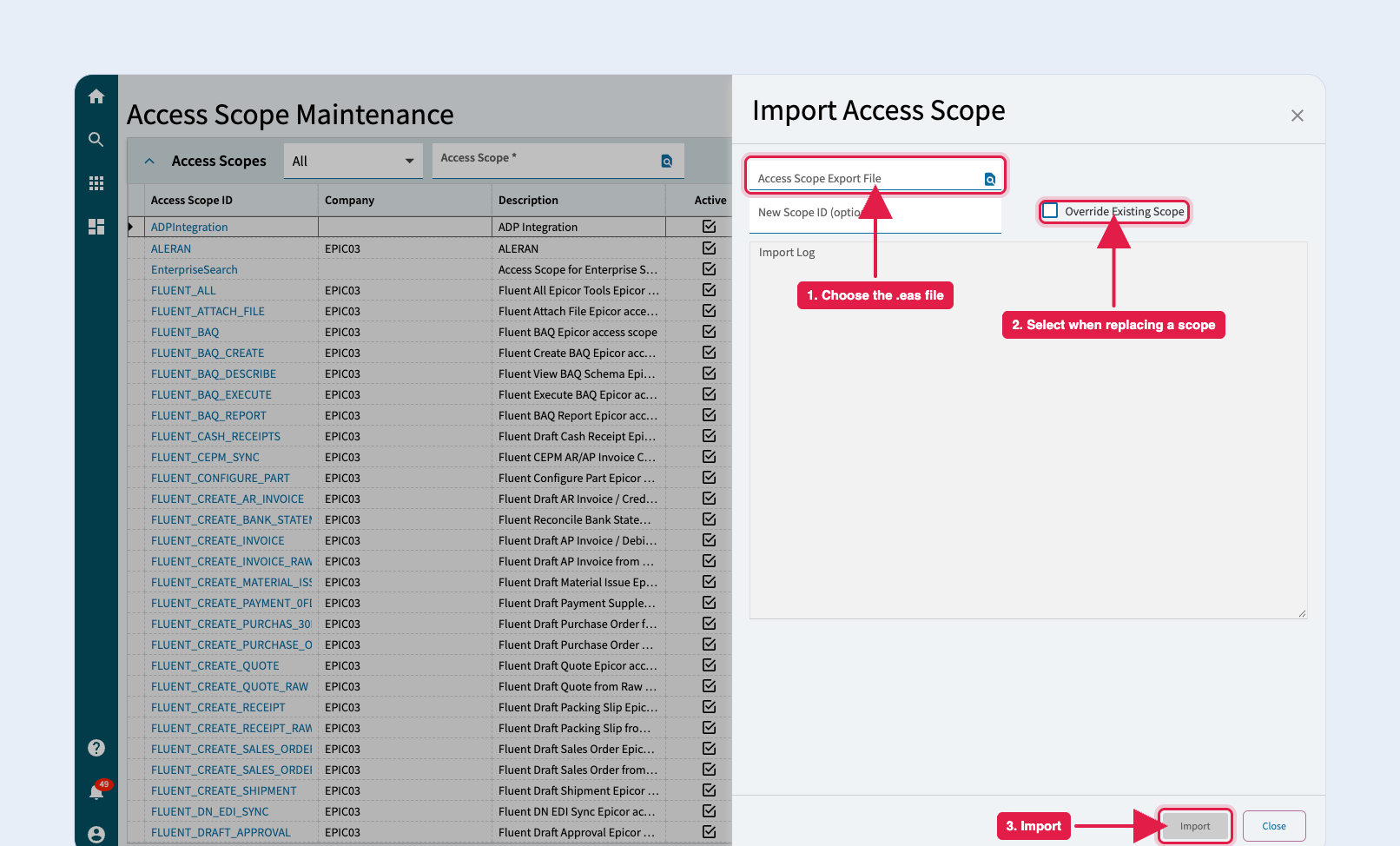
In Access Scope Maintenance, choose Import Access Scope from the overflow menu at the top right.
In Access Scope Export File, choose the
.easfile you downloaded.Select Override Existing Scope. Without it, Epicor adds to the existing scope and keeps methods that are no longer needed.
Click Import and check the Import Log for errors.
The integration user and API key already point at this scope ID, so there is nothing to reassign.
Tools added or removed
A different set of tools produces a new scope ID, so the import creates a second scope next to the old one.
Import the
.easfile in Access Scope Maintenance as above.In User Account Maintenance, open the Fluent integration user, set Access Scope in the Security section to the new scope, and save.
In API Key Maintenance, open the API key Fluent uses, set Access Scope to the same scope, and save.
Once Verify permissions passes, delete the old scope in Access Scope Maintenance.
Verify the update
Run Verify permissions again on each Epicor connection. When the scope covers every tool, it reports that all methods are granted and names the scope it checked.
IMAGE: verify-permissions-granted.png
If it still lists missing methods, check that you assigned the new scope to both the integration user and the API key. The API key's scope wins when both have one.