
Duplicate an agent for another Epicor company
To run the same agent in a second Epicor company, duplicate the agent, give the copy its own name and email address, then point each of its Epicor tools at the connection for the other company. The copy starts with the original's instructions, tools, approval flow and settings, so you only change what differs between the two companies.
Before you start, you need:
To be a team admin. Only admins see Duplicate.
An Epicor connection for the other company. Each connection reaches one company, so add one in Manage team > Connections with Add Connection if you don't have it yet. Connect your Epicor Kinetic to Fluent covers the details.
Room on your plan for one more agent. A copy counts toward your agent limit like any other agent.
Duplicate the agent
Go to Manage team > Agents.
Hover over the agent you want to copy and click the three-dot button in its corner.
Click Duplicate.
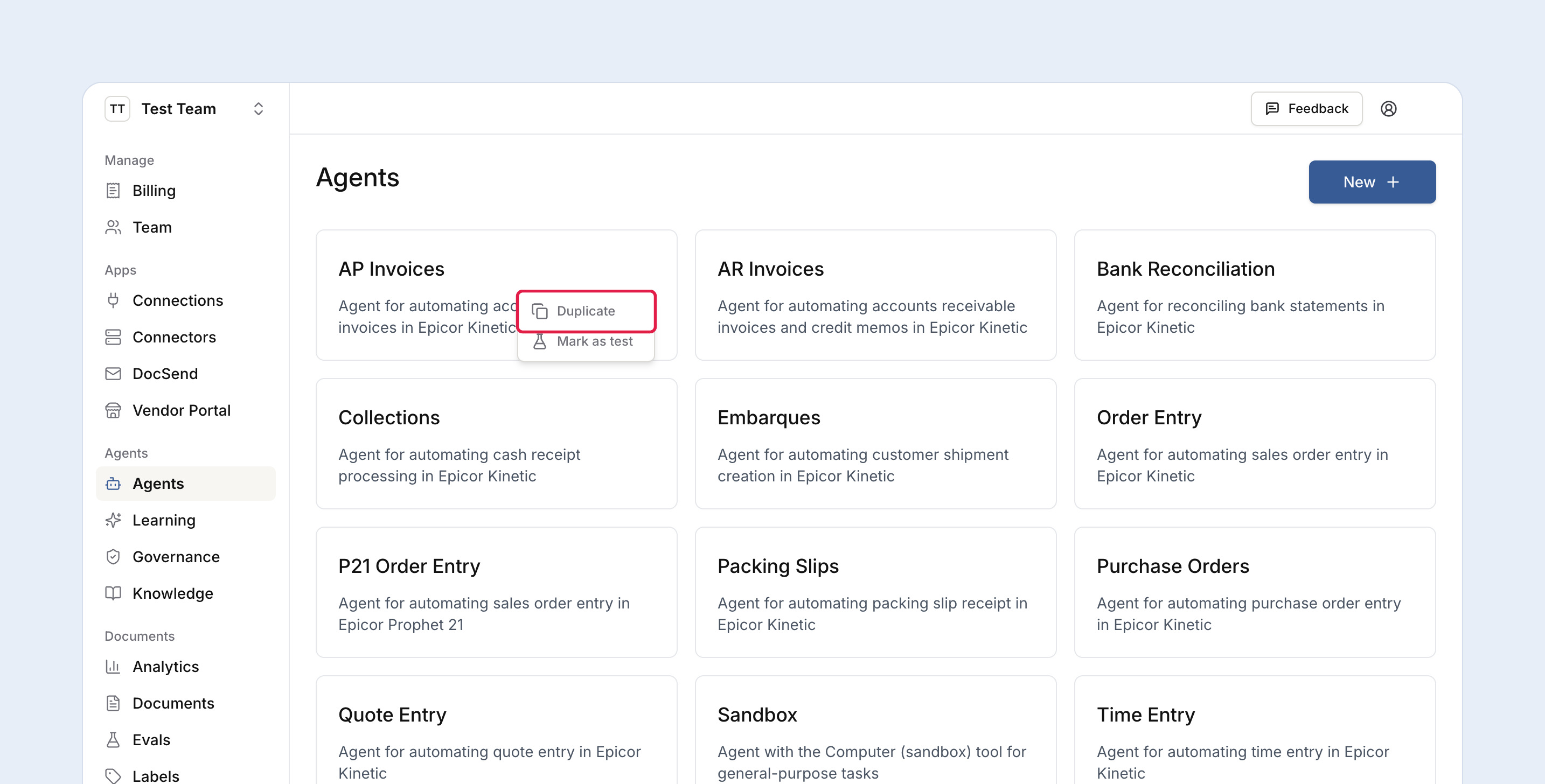
Fluent opens the copy, named after the original with (Copy) at the end. The original keeps running as before.
What the copy keeps
The copy has the original's instructions, tools and their settings, approval flow, document tabs, labels, connectors, and the people who have access to it. These start fresh and you set them up again on the copy if you need them:
Documents, runs and what the agent learned from them
Schedules
Webhooks
Messaging channels such as Microsoft Teams and WhatsApp
Rename the copy
Give the copy a name that says which company it works in, so your team can tell the two apart in Documents and in the agent list.
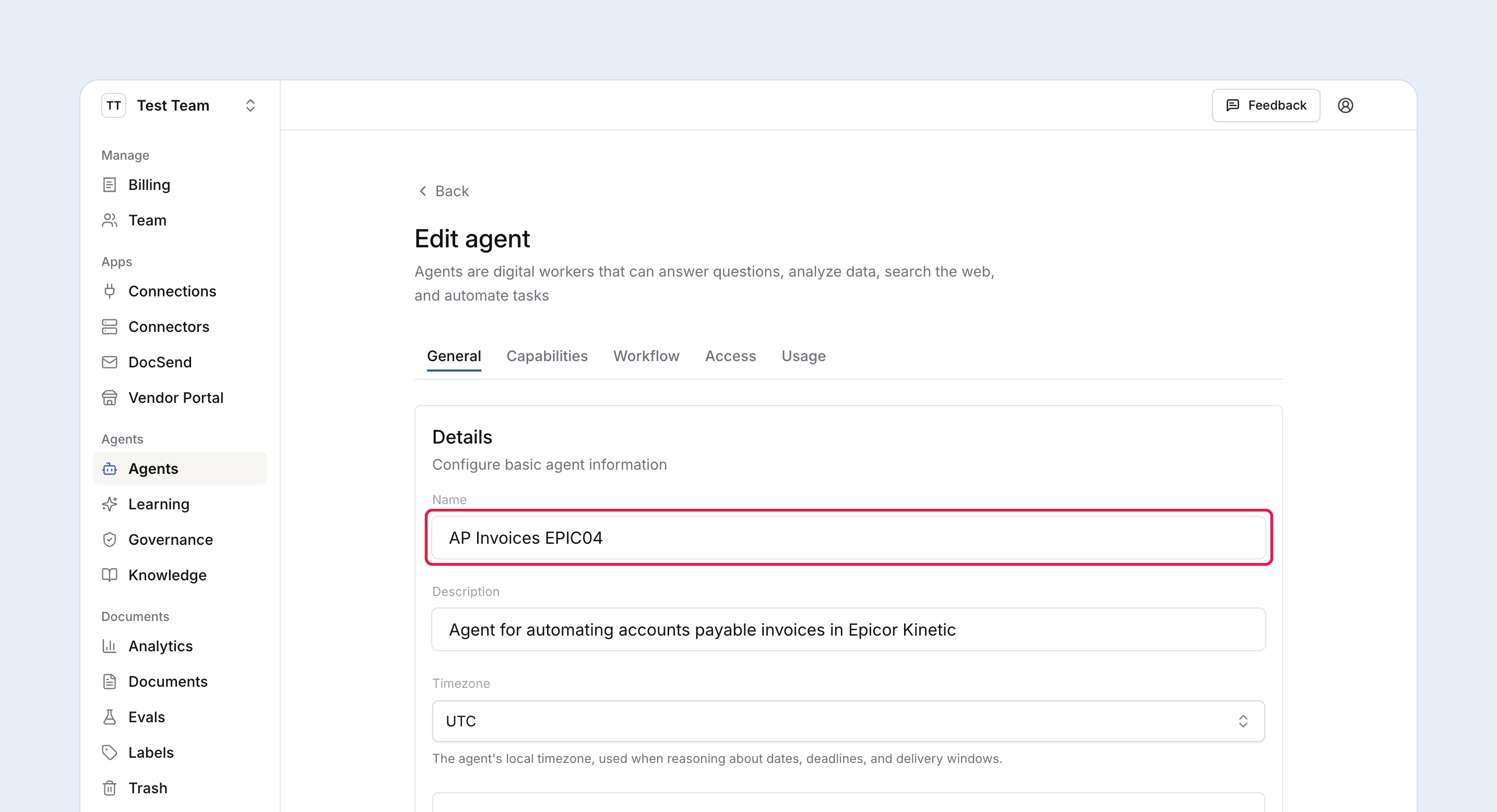
On the General tab, replace the text in Name, for example
AP Invoices EPIC04.Update Description if it names the original company.
Change its email address
The copy gets its own email address so documents for one company never reach the other's agent. Fluent makes it from the original's address plus a dot and six random characters, such as ap-invoices.0ef7cb; change it to something your vendors and team can remember.
Open the Access tab.
Under Email, replace the text in Default address, for example
ap-invoices-epic04.Check Inbound whitelist and Outbound whitelist. They are copied from the original, so change them if the other company receives documents from different senders.
Click Update at the bottom of the page. It saves the changes on every tab at once.
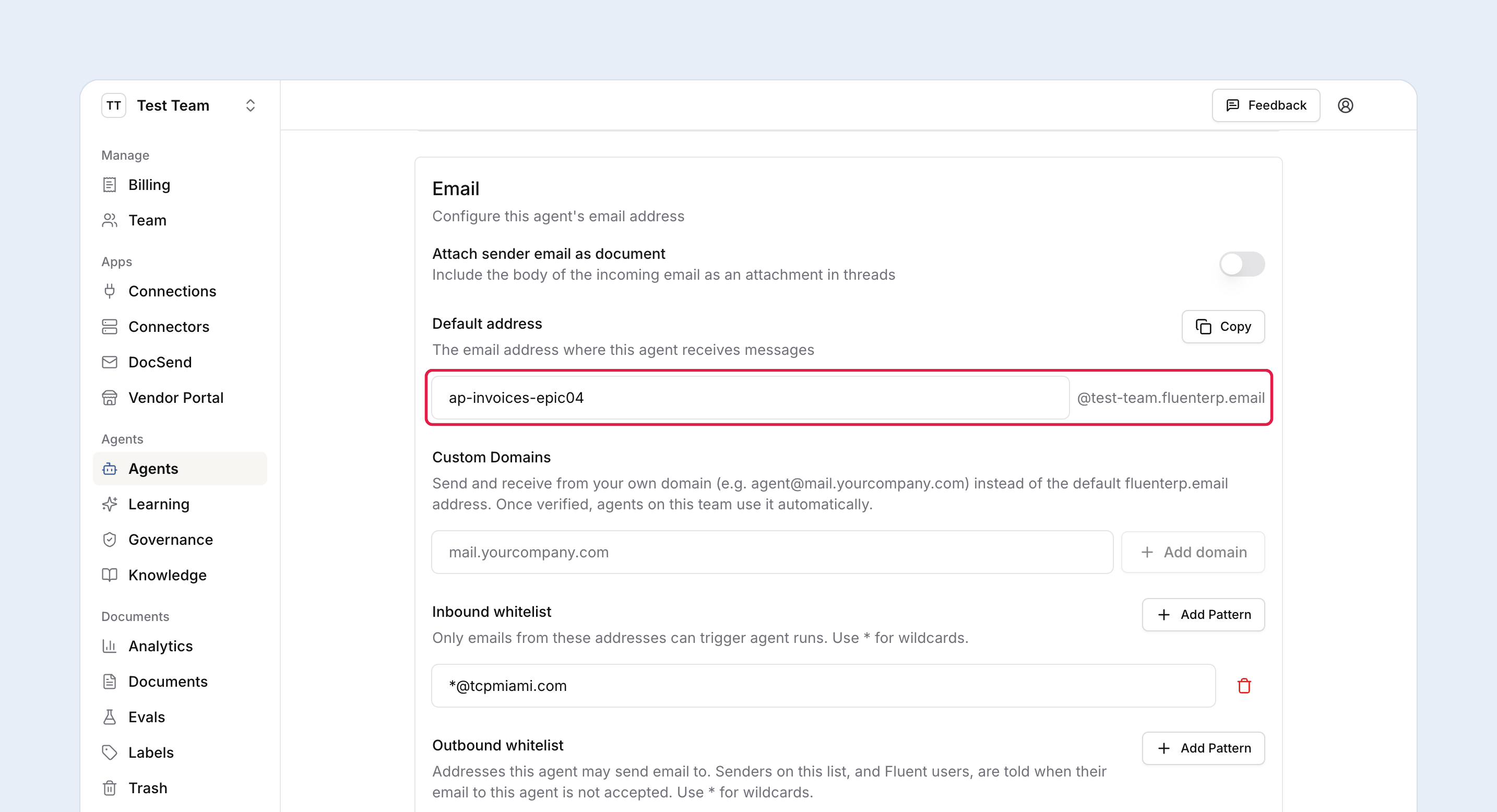
Then send the new address to whoever forwards that company's documents, or set up forwarding to it from your mailbox.
Point its tools at the other company
Each Epicor tool on the agent has its own connection, and the copy's tools still use the original company's. Change every tool that has a Connection field.
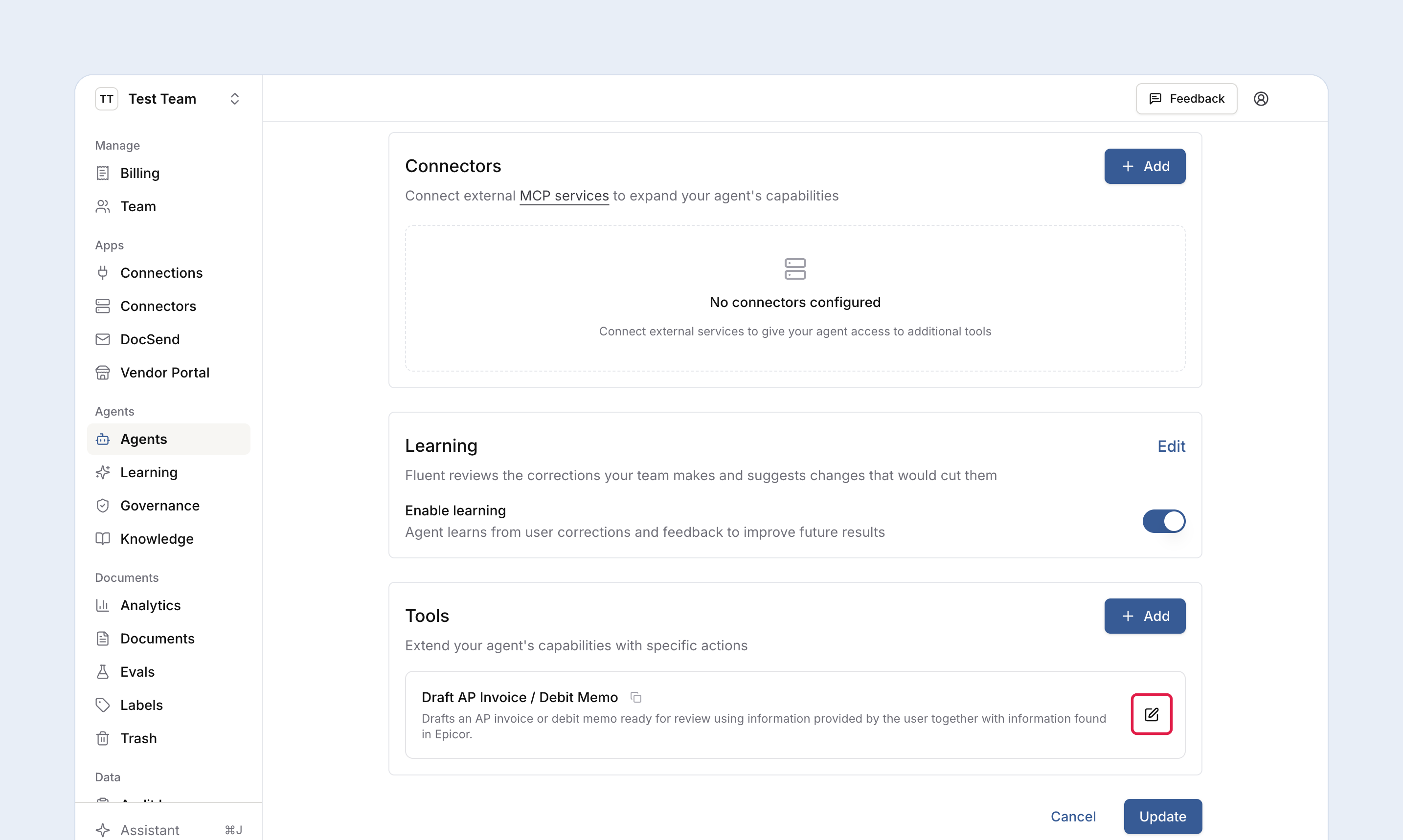
Open the Capabilities tab and scroll to Tools.
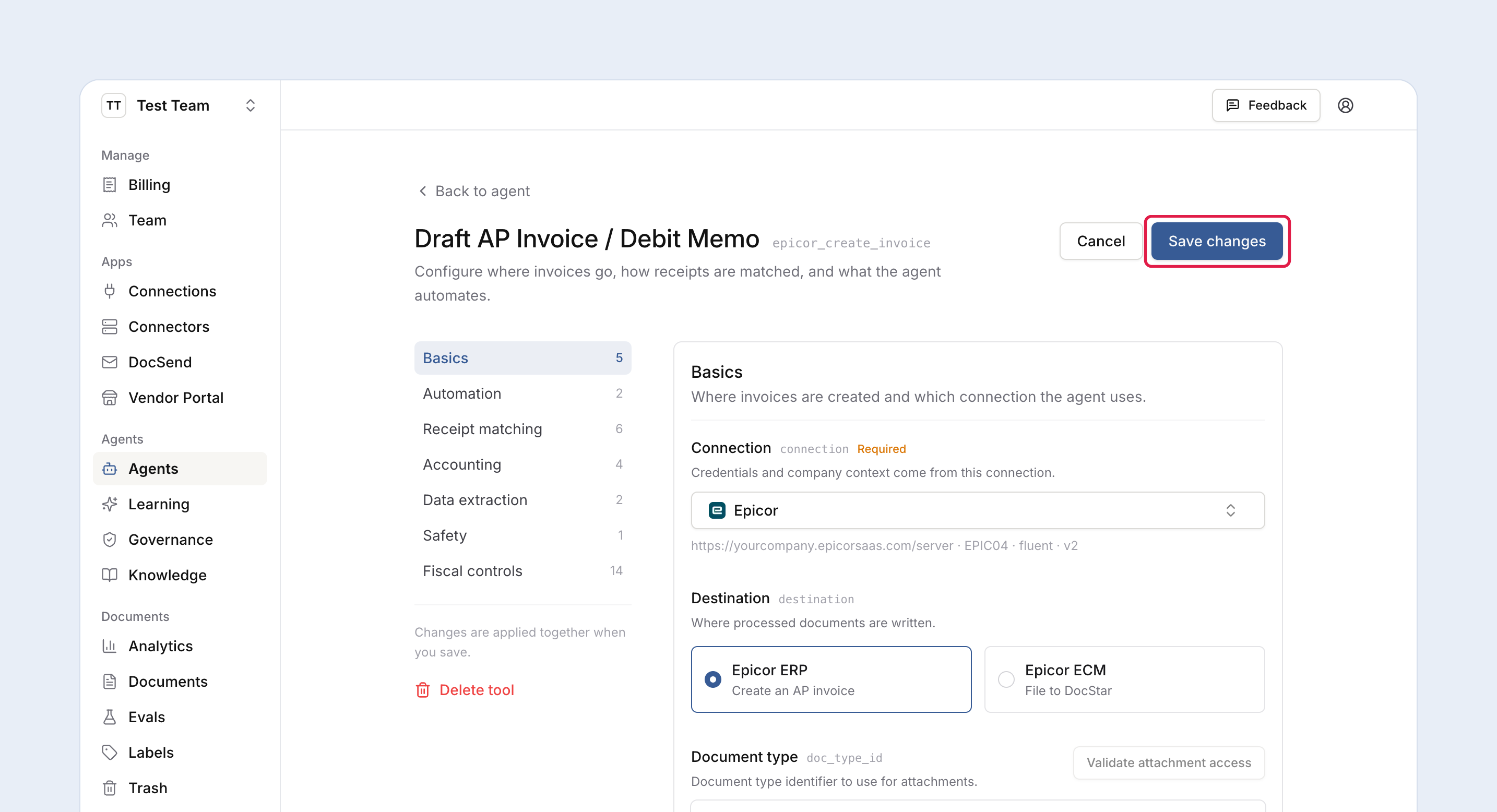
Click the pencil icon on a tool, for example Draft AP Invoice / Debit Memo.
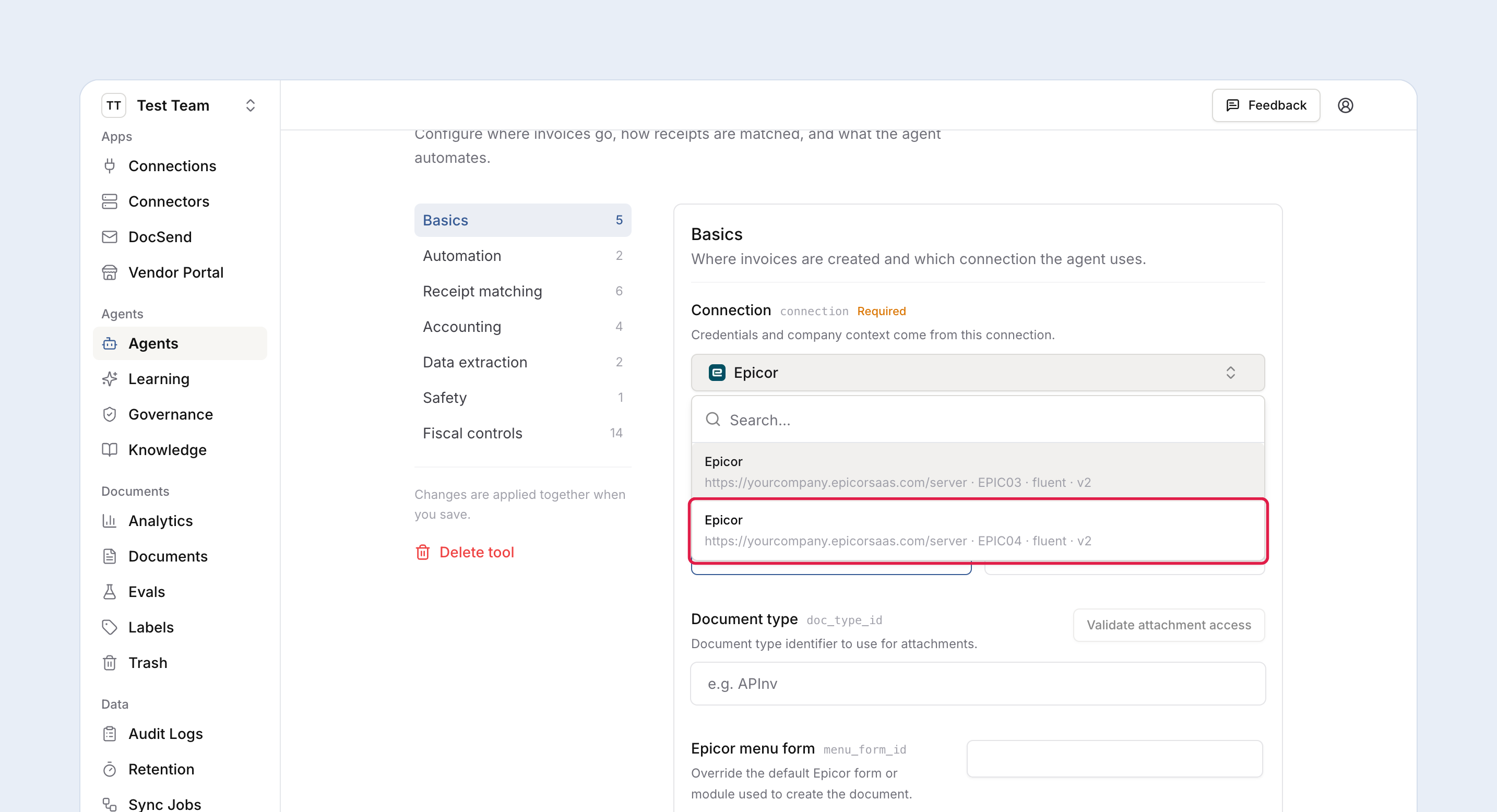
Under Basics, click Connection and choose the connection for the other company. Each connection shows its Epicor address and company ID underneath, so pick the one with the new company ID.
Check the tool's other fields for values that only exist in the original company, such as Document type, and change them to the new company's.
Click Save changes.
Repeat for each tool that has a Connection field.
Documents the copy drafts from then on go to the new company. Before you send it live documents, send it one test document and check the draft in Documents.