
Update a connection's password
When the password for an Epicor, SugarCRM or other login changes, update it on the connection in Fluent: open the connection, click Edit Connection, enter the new password, and save. You need to be a team admin to edit a connection.
Change the password in Epicor or SugarCRM first, then update Fluent straight away. Until both match, the agents that use the connection can't reach your system.
Change the password
In the sidebar, go to Apps > Connections.
Click ⋯ next to the connection and choose View Details. If someone sent you a link to the connection, open that instead.
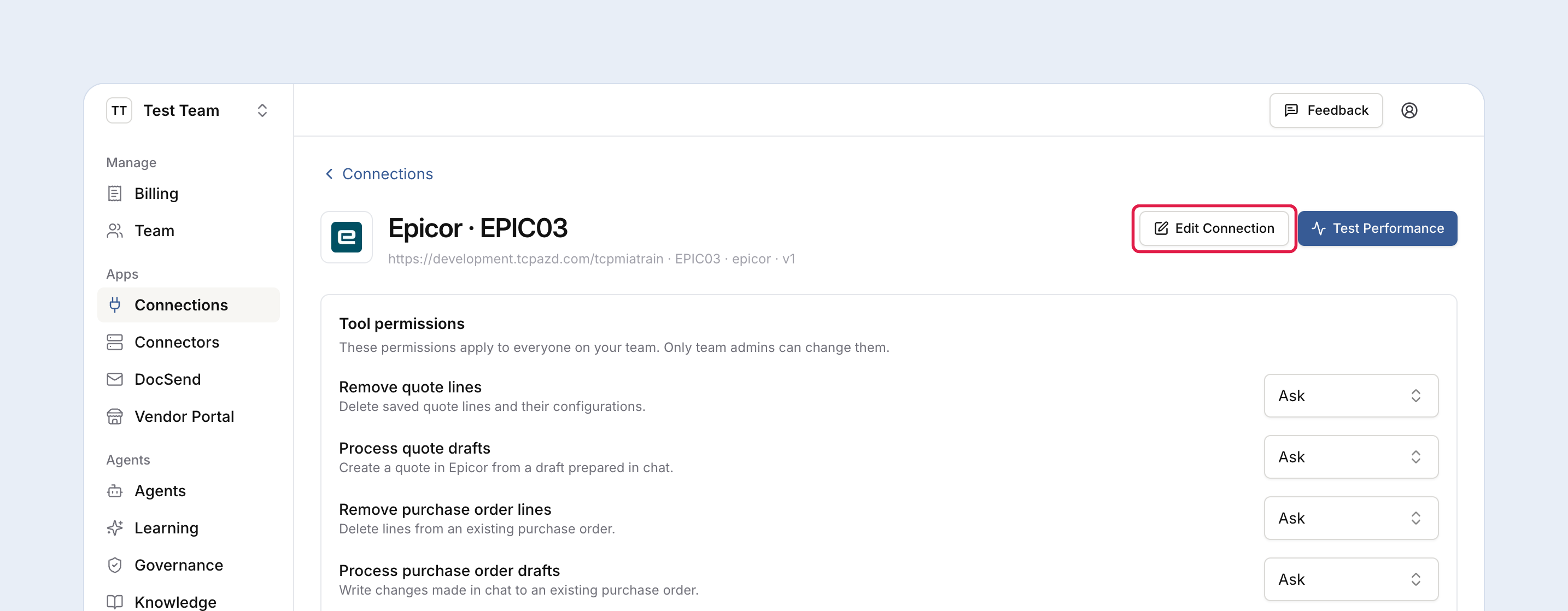
Click Edit Connection.
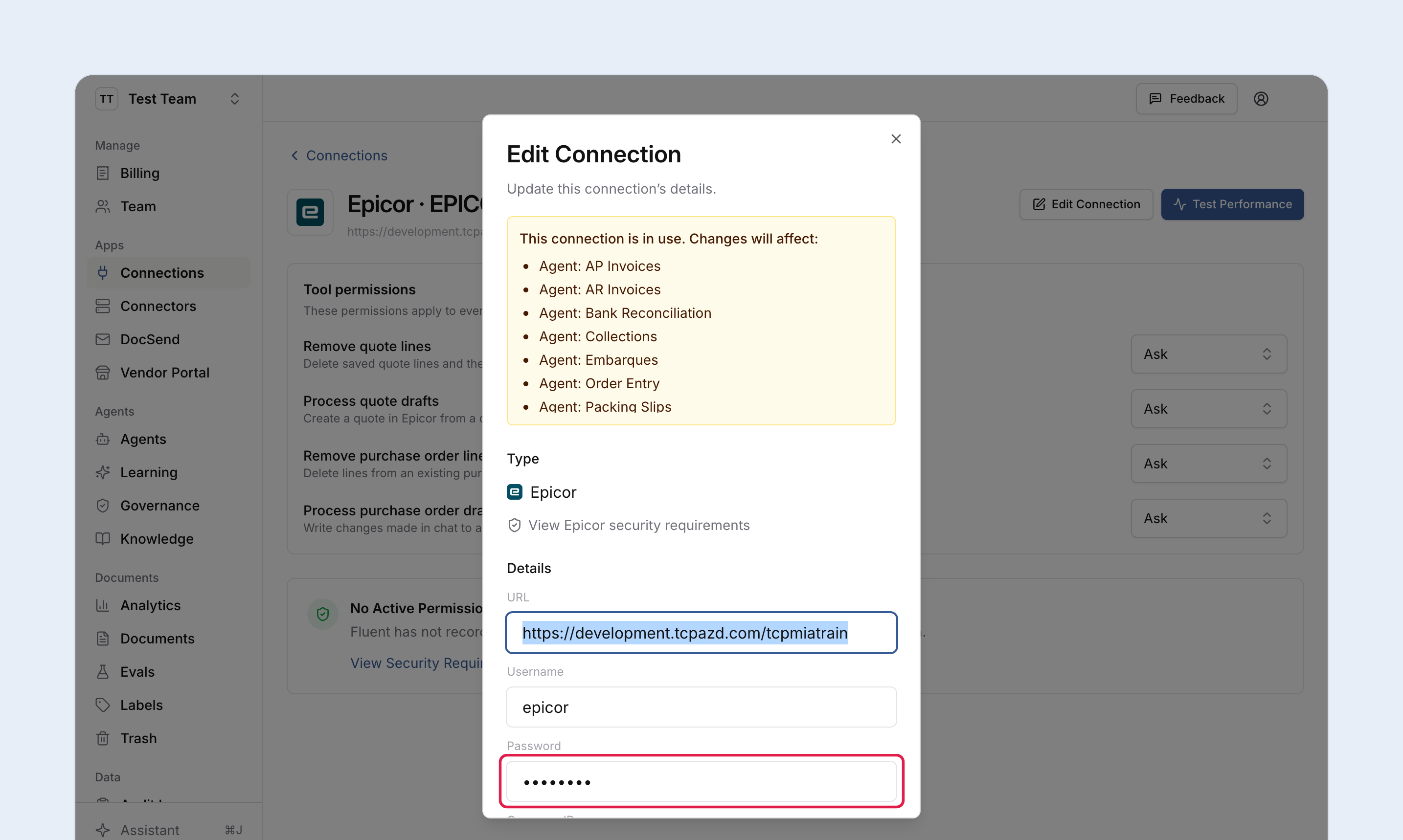
In Password, enter the new password. Leave the other fields as they are.
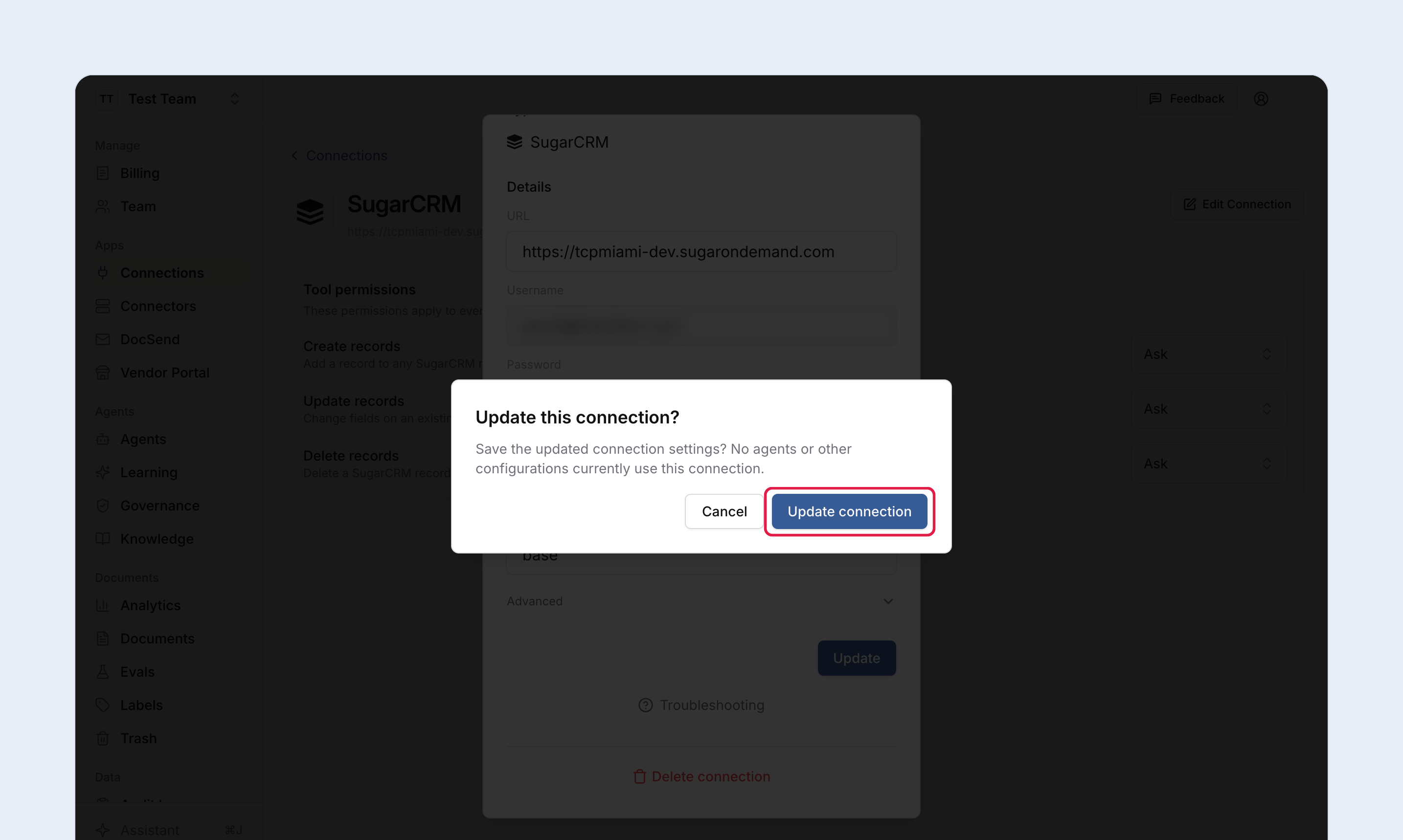
Click Update, then confirm with Update connection.
If the update fails
Fluent tests the connection with the new details when you save. If the test fails, the dialog shows the error. Check that the password is correct and the login isn't locked, then see Troubleshooting a connection.